 Specs
The best USB-C docks and hubs for a home desk
We read four dock spec sheets and four vendor pages on October 30, 2026. The best buy for most home desks is the Belkin Connect 11-in-1 Pro GaN Dock at $179.99, because it sends 96W to the laptop and hides its own power supply.
Our picks
- Best overall for a home desk: Belkin Connect USB-C 11-in-1 Pro GaN Dock 150W
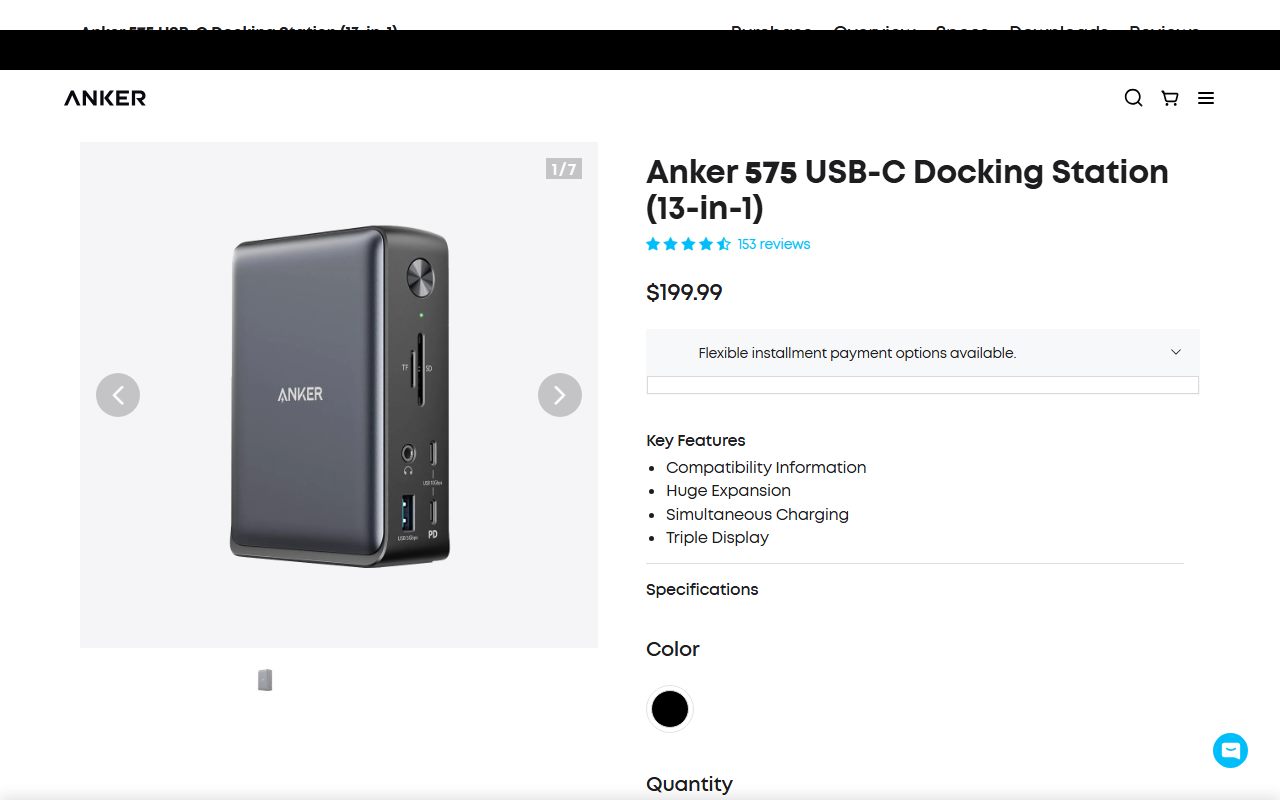
- Best for a crowded desk: Anker 575 USB-C Docking Station
- Best for three or four screens: Plugable TBT4-UDZ Thunderbolt 4 Dock
- Most ports, once you find the price: CalDigit TS4 Thunderbolt 4 Dock
The four docks at a glance
Each line is the figure the maker published on October 30, 2026.
- Belkin Connect 11-in-1 Pro GaN Dock 150W - $179.99, USB-C host, 96W to laptop, 11 ports, 1 USB-A, Gigabit Ethernet, 2-year warranty
- Anker 575 USB-C Docking Station - $199.99, USB-C host, 85W to laptop, 13 ports, 3 USB-A, 1Gbps Ethernet, no warranty term printed
- Plugable TBT4-UDZ - $289.99, Thunderbolt 4 host, 98W certified, 16 ports, 6 USB-A, 2.5Gbps Ethernet, 2-year warranty
- CalDigit TS4 - price not readable on caldigit.com, Thunderbolt 4 host, 98W sustained, 18 ports, 5 USB-A, 2.5Gbps Ethernet, 2 years in the spec table

Start with the laptop, not the dock
The single most common dock mistake is buying for the ports and discovering the laptop cannot use them.
Two capabilities decide everything. The laptop's USB-C port must support DisplayPort Alt Mode, or no monitor will light up. It must support Power Delivery input, or the dock will run your accessories while you keep using the original charger.
After that comes the Thunderbolt question. A Thunderbolt or USB4 port carries 40Gbps and several display streams. A plain USB-C port carries 10Gbps and usually one.
That is why two of our four picks are USB-C docks. They are the right answer for most laptops, not a compromise.
Our everyday laptop guide lists which machines carry Thunderbolt, and the MacBook Air vs XPS 13 comparison shows how few ports a modern ultraportable actually has.
Wattage is the number that decides the purchase
Port counts sell docks. Wattage decides whether you keep using one.
The four docks here publish 85W, 96W, 98W certified and 98W sustained to the host. The spread is small in numbers and large in effect on a working laptop.
85W holds a 13-inch or 14-inch ultraportable comfortably. 96W to 98W covers the same machines under a heavier load. None of them fills a 16-inch workstation that ships with a 140W charger.
The second figure to look for is the accessory budget. Belkin publishes 50W for peripherals on top of the 96W to the host. The others publish per-port wattages instead, which amounts to the same information in smaller pieces.
Our USB-C Power Delivery explainer sets out how the laptop and the dock negotiate a figure, and why a 100W input never means 100W arrives.
Count the sockets you actually use
Eleven ports and thirteen ports sound similar. The mix is what differs.
The Belkin's eleven include one USB-A socket. The Anker's thirteen include three. CalDigit's eighteen include five. Plugable's sixteen include six.
Most desk peripherals still arrive with USB-A plugs: wireless receivers, printers, older webcams, backup drives. One socket runs out fast.
Bluetooth peripherals change the arithmetic. The Logitech MX Keys S and MX Master 3S pair wirelessly and need no socket at all, and the Logitech Brio 500 is a USB-C webcam.
If your peripherals are all wireless, buy for watts. If they are all wired, buy for sockets.
Two screens is where the marketing gets slippery
Every dock page in this group advertises multi-monitor support. Only some of them tell you the cost.
The Anker page is the most modest and the clearest: single 4K at 60Hz, dual 4K at 30Hz, triple 1080p. 30Hz on a second screen is visible on a moving pointer, and worth knowing before purchase.
The Belkin page says two different things about two screens, listing 4K at 120Hz in its summary and 4K at 60Hz in its feature block on the same day. Treat the lower figure as the planning number.
The Thunderbolt pair publish higher ceilings, then qualify them by host. Plugable spells out that four extended screens on Windows usually needs the laptop's internal display turned off. CalDigit lists two displays for Windows Thunderbolt machines and one for USB-C hosts.
Mac users face a separate rule. On macOS the Belkin extends one screen and mirrors the second, because macOS does not use Multi-Stream Transport. Thunderbolt docks sidestep that by giving each screen its own stream.
For what those numbers do on the screen itself, our monitor specs explainer covers resolution, refresh rate and the figures that change what you see.
Ethernet: Gigabit or 2.5Gbps, and when it matters
The two USB-C docks list Gigabit. The two Thunderbolt docks list 2.5Gbps.
The faster jack only helps if the router or switch at the other end also runs above 1Gbps. Plugable says so in a footnote and recommends Cat 6 cable for longer runs.
CalDigit adds a restriction the others do not have: its Ethernet port does not work at all on a laptop without Thunderbolt, because the network controller needs PCIe, which plain USB-C does not carry.
That single line disqualifies the TS4 for many buyers, and CalDigit publishes it rather than hiding it.
For homes where the desk has no cable at all, our mesh Wi-Fi guide and the Wi-Fi 7 numbers explainer cover what wireless gives you instead. The TP-Link Deco BE63 review lists the wired ports on a current mesh unit.
Card readers separate the Thunderbolt docks from the rest
If you never touch a memory card, skip this section and save money.
The USB-C docks list SD at UHS-I and SD 3.0. The Thunderbolt docks list UHS-II, and Plugable publishes a rate of 312 MB/s and names the controller.
For a photographer that gap is the clearest reason to pay the Thunderbolt premium. For everyone else it is headroom that never gets used.
Where a dock beats a monitor with a hub, and where it does not
Many office monitors now carry their own USB ports, an Ethernet jack and even a KVM switch. For a single-screen desk that can replace a dock entirely.
The arithmetic is simple. One screen plus a few peripherals: the monitor's hub is enough. Two or more screens, or a card reader, or wired networking at speed: buy the dock.
The BenQ PD2706U lists a KVM switch for two computers, and the Dell UltraSharp U2724D carries its own USB ports. Our Dell U2724D vs BenQ PD2706U comparison covers that pairing, and our office monitor guide covers the panels.
What a dock does badly: charging phones and earbuds
A dock will charge a phone. It will not charge one quickly, and it was never designed to.
The accessory ports here are rated between 4.5W and 20W. A modern phone charger delivers several times that, and a laptop charger more again.
So a desk that charges a phone, a tablet and a pair of earbuds still wants a separate charger beside the dock.
The Anker Prime Charger 100W and the UGREEN Nexode 100W both split power across several devices, and our USB-C charger guide covers the pairing.
The cable in the box decides where the dock can sit
Every dock here ships with its host cable, and the lengths differ enough to matter on a real desk.
Anker includes a 3 foot USB-C cable and states in its FAQ that a replacement must support USB 3.1 Gen 2 and 85W Power Delivery. Belkin includes a 3.3 foot, 1 metre USB-C to USB-C cable.
Plugable includes a 1.0 metre 40Gbps Thunderbolt 4 cable along with a vertical stand. CalDigit includes a shorter 0.8 metre Thunderbolt 4 cable, and notes that a 2 metre certified cable works without losing performance.
One metre is enough to reach a laptop beside the monitor. It is not enough to reach a laptop on a stand at the back of a deep desk.
Replacing a Thunderbolt cable is the expensive kind of afterthought, because the replacement has to be certified for 40Gbps. Budget for it if your desk is deep.
Prices we saw, and the promotions attached to them
All four prices here were read on one day, and three of the four pages carried a promotion that will have expired by the time you read this.
Belkin listed $179.99 with a buy-one-get-one 30% banner dated to end October 31. Anker listed $199.99 with a sitewide discount code shown on the page and a bulk price of $136.95 each at ten units or more.
Plugable listed $289.99 with free three-day continental US shipping over $35 and a 30-day money back guarantee. CalDigit listed nothing at all.
Treat the three figures as the list prices on October 30, 2026 and expect the promotions to have changed. Confirm at checkout, which is the only place a price is binding.
What a dock will not fix
Docks get blamed for problems they did not cause, so it is worth naming the common ones.
A dock cannot add display streams your laptop's graphics chip does not have. Plugable and CalDigit both publish per-chip display limits for exactly this reason.
A dock cannot make Gigabit internet faster than your line. Nor can a 2.5Gbps port help if the router is Gigabit.
A dock cannot charge a laptop beyond the wattage it publishes, no matter how many ports are free.
And a dock cannot turn a plain USB-C port into a Thunderbolt port. On a Thunderbolt 3 host, Anker states its USB-C dock still caps at 10Gbps; the reverse does not work at all.
Also compared: the docks that did not make the cut
Four candidates were researched and set aside, and the reasons are worth printing.
- Satechi Thunderbolt 4 Multimedia Pro Dock - the product page returned a rate-limit response on every attempt on October 30, 2026, so we read no figures and graded nothing
- UGREEN Revodok Pro 313 - the US store page returned the same rate-limit response, and we will not grade a dock from a regional store in another currency
- Dell USB-C Dock WD19S - dell.com returned an access-denied page to us on October 30, 2026, so no specification or price was readable
- Kensington SD5780T and SD5800T - both pages read cleanly and list $299.99 and $289.99, but both also carry a discontinued notice, and we will not rank a dock a reader cannot buy
How to choose in five minutes
Work through these in order and the answer usually falls out.
- Does your laptop have Thunderbolt or USB4? If no, you are choosing between the two USB-C docks
- What wattage is the charger in the box? If it is 140W, no dock here will fill the battery under load
- How many USB-A plugs do you own? Three or more rules out the Belkin without a splitter
- How many screens, and at what refresh rate? Two screens at 60Hz rules out the Anker
- Is there room for a power brick? If not, the Belkin is the only one with the supply inside
- Do you load camera cards? If yes, pay for UHS-II and buy Thunderbolt
- Does your router run above 1Gbps? If yes, the 2.5Gbps jacks on the Thunderbolt docks are usable
What we could not read, and said so
Two gaps in this guide are ours rather than the vendors'.
We could not read a price for the CalDigit TS4 anywhere on caldigit.com on October 30, 2026, so the TS4 entry carries no price and no value claim.
We could not read a warranty term for the Anker 575, because the page shows a slogan and the warranty link led to a different Anker product line.
We also could not read the star rating on Plugable's page, which is rendered as an image rather than text, so we print the review count of 543 and no average.
Every other figure in this guide was read as text, from the vendor page or from the structured product data embedded in it.
Bottom line
For most home desks, buy the Belkin Connect 11-in-1 Pro GaN Dock at $179.99. It delivers the most watts to the laptop of the two USB-C docks, costs the least, and removes a brick from the floor.
Buy the Anker 575 instead if you count three or more USB-A plugs on your desk, or want three plain video sockets.
Buy the Plugable TBT4-UDZ if your laptop has Thunderbolt and you run three or four screens, or work from UHS-II cards.
And read the CalDigit TS4 spec sheet if you need 18 ports, but get the price from the retailer before you commit.
Best overall for a home desk: Belkin Connect USB-C 11-in-1 Pro GaN Dock 150W
At $179.99 this is the cheapest dock of the four and the one that sends the most power to the laptop: up to 96W, from a 146W budget, with 50W set aside for accessories.
The reason it sits at number one is physical as much as electrical. The 150W supply is built into the housing, so a crowded desk gains one AC lead instead of a brick on the floor.
It also prints a two-year warranty and a 30-day money back guarantee, which the Anker page does not. Read the full Belkin 11-in-1 Pro GaN dock review for the ports and the contradictions.
The catch is a single USB-A socket, and a page that states both 4K 120Hz and 4K 60Hz for two screens. On macOS, Belkin says only one extra screen extends and the second mirrors.
Visit Belkin Connect USB-C 11-in-1 Pro GaN Dock 150W
We have no affiliate relationship with this vendor. Link goes to the official site.
Best for a crowded desk: Anker 575 USB-C Docking Station
The Anker 575 costs $199.99 and gives you 13 ports, including three USB-A sockets and three separate video outputs: two HDMI and one DisplayPort.
It sits at number two rather than number one because it sends 85W to the laptop where the Belkin sends 96W, costs $20 more, needs an external brick, and prints no warranty term.
It wins the moment you count plugs. Three USB-A ports take a keyboard receiver, a mouse receiver and a webcam without a splitter, which the Belkin cannot. Read the full Anker 575 review for the per-port wattages.
Its display line is modest and honest: 4K at 60Hz on one screen, 4K at 30Hz on two, 1080p on three. Buy it for sockets, not for screens. Our Anker 575 vs Belkin comparison sets the two side by side.
Visit Anker 575 USB-C Docking Station
We have no affiliate relationship with this vendor. Link goes to the official site.
Best for three or four screens: Plugable TBT4-UDZ Thunderbolt 4 Dock
At $289.99 the Plugable TBT4-UDZ is the most expensive pick here, and the only one with four video sockets: two HDMI 2.0 and two DisplayPort 1.2.
It sits below the two USB-C docks in this list only because it needs a Thunderbolt or USB4 laptop.
Given one, it is the strongest dock of the four: 16 ports, 2.5Gbps Ethernet, UHS-II card readers at 312 MB/s, and 98W certified host charging from a 135W supply.
It is also the best documented dock we read. Plugable names its Ethernet, audio and card reader chipsets, and publishes the awkward limits too, including the fact that four screens on Windows usually needs the internal display disabled.
Read the full Plugable TBT4-UDZ review. Linux is listed as not supported, so check that first.
Visit Plugable TBT4-UDZ Thunderbolt 4 Dock
We have no affiliate relationship with this vendor. Link goes to the official site.
Most ports, once you find the price: CalDigit TS4 Thunderbolt 4 Dock
The CalDigit TS4 lists 18 connectors, more than any other dock here: three downstream Thunderbolt 4 ports at 40Gb/s, three USB-C, five USB-A, 2.5Gbps Ethernet, two UHS-II card readers and three audio jacks.
It sits last for one reason, and it is not the hardware. CalDigit publishes no price on its own site. We read the product page, the shop page and the warranty page on October 30, 2026 and found no currency figure on any of them.
That makes a value judgement impossible from the vendor's pages, so we do not make one. Read the full CalDigit TS4 review for the spec sheet and the two warranty statements that disagree.
Two other limits matter. There is no HDMI socket at all, and the Ethernet port does not work on a laptop without Thunderbolt, which CalDigit states plainly.
Visit CalDigit TS4 Thunderbolt 4 Dock
We have no affiliate relationship with this vendor. Link goes to the official site.
How we chose
We did not run tests of our own. Grades come from manufacturer specification pages, vendor FAQs and published offer data, all read on October 30, 2026.
Every number had to be readable as text. We rendered each vendor page in full and read prices, wattages, port counts and warranty terms from the page or its embedded product data.
Where a figure was not readable, we say so instead of estimating.
Host wattage counted most. A dock that cannot charge your laptop is a hub with ambitions. We recorded the figure each maker states for power to the host, and the figure for accessories where published.
Port type mattered more than port count. Five USB-A sockets beat eleven ports that are mostly video outputs you will not use. We list the mix for each pick rather than the headline number.
Display claims were read twice. Several pages state two different refresh rates for the same dual-screen mode. Where a page contradicts itself we print both readings and tell you to confirm before paying.
Warranty terms had to be printed. One of the four docks shows a warranty slogan and no number of months. That cost it points under support.
Two candidates were dropped during research because their pages would not load for us at all: Satechi's Thunderbolt 4 dock and UGREEN's Revodok Pro 313 both returned rate-limit responses on October 30, 2026, so we had no figures to grade.
Frequently asked
What is the best USB-C dock for a home desk?
The Belkin Connect 11-in-1 Pro GaN Dock 150W, at $179.99 on October 30, 2026. It lists up to 96W to the laptop and 50W for accessories from a power supply built into the dock, with a printed two-year warranty.
Do I need a Thunderbolt dock, or is USB-C enough?
USB-C is enough for one or two screens, a keyboard, a mouse, a webcam and wired internet. Pay for Thunderbolt if you want three or four extended screens, UHS-II card reading at 312 MB/s, or 2.5Gbps Ethernet.
How many watts should a dock send to my laptop?
Match or beat the charger in your laptop's box. The docks here publish 85W, 96W and 98W to the host. A 16-inch laptop that ships with a 140W charger will not charge at full speed from any of them.
Will a USB-C dock run two 4K monitors at 60Hz?
Sometimes. Anker lists dual 4K at 30Hz for its 575. Belkin's page lists both 4K at 60Hz and 4K at 120Hz for two screens, so confirm before paying. On macOS, Belkin says only one screen extends and the second mirrors.
Why does one dock in this guide have no price?
CalDigit does not publish a price for the TS4 on caldigit.com. We rendered the product page, shop page and warranty page on October 30, 2026 and found no currency figure, so we print none and make no value claim.
Does a dock replace my phone charger?
No. Accessory ports on these docks are rated between 4.5W and 20W, well below a dedicated charger. A desk that charges a phone, a tablet and earbuds still wants a separate multi-port charger beside the dock.
Is 2.5Gbps Ethernet on a dock worth paying for?
Only if your router or switch runs faster than 1Gbps. Plugable states that reaching 2.5Gbps needs matching network hardware and recommends Cat 6 cable for longer runs. Otherwise the port behaves like a Gigabit port.